eFaktura.nl integration with Mollie
Online payments on your invoices
You can now add an online payment link to your invoices in eFaktura.nl. It works through the eFaktura.nl integration with Mollie, a Dutch payment provider supervised by De Nederlandsche Bank.
Your client opens the invoice, clicks the link and pays. No copying an 18-character IBAN, no pasting the invoice number into the payment reference, and no emails asking which account the money should go to.
You create invoices just as you do now, and your client gets a simple way to pay right away, on a computer or a phone. All you need is to connect eFaktura.nl to a Mollie account once. Mollie registration is available in many languages, including English and Polish.
The feature is available in the PRO plan.
What you get:
- a payment link in the email that comes with your invoice
- payment with methods your clients already use, such as iDEAL or a card
- fewer mistakes in amounts, account numbers and payment references
- money paid into your business bank account via Mollie
How does a payment link work?
A payment link cuts the path from invoice to payment down to a few clicks.
On your side
- You connect your eFaktura.nl account to Mollie once (instructions below).
- You create an invoice and add a payment link to it.
- You send the invoice from the app, and your client receives the payment link in the email.
On your client’s side
- Your client opens the email with the invoice and clicks the payment link.
- They land on a secure Mollie payment page that shows the amount and the invoice number.
- They choose a payment method and confirm it in their bank or app.
Your client doesn’t need an account with Mollie or eFaktura.nl. If they prefer a regular bank transfer, they can still make one, because your account details stay on the invoice.
What happens to the money?
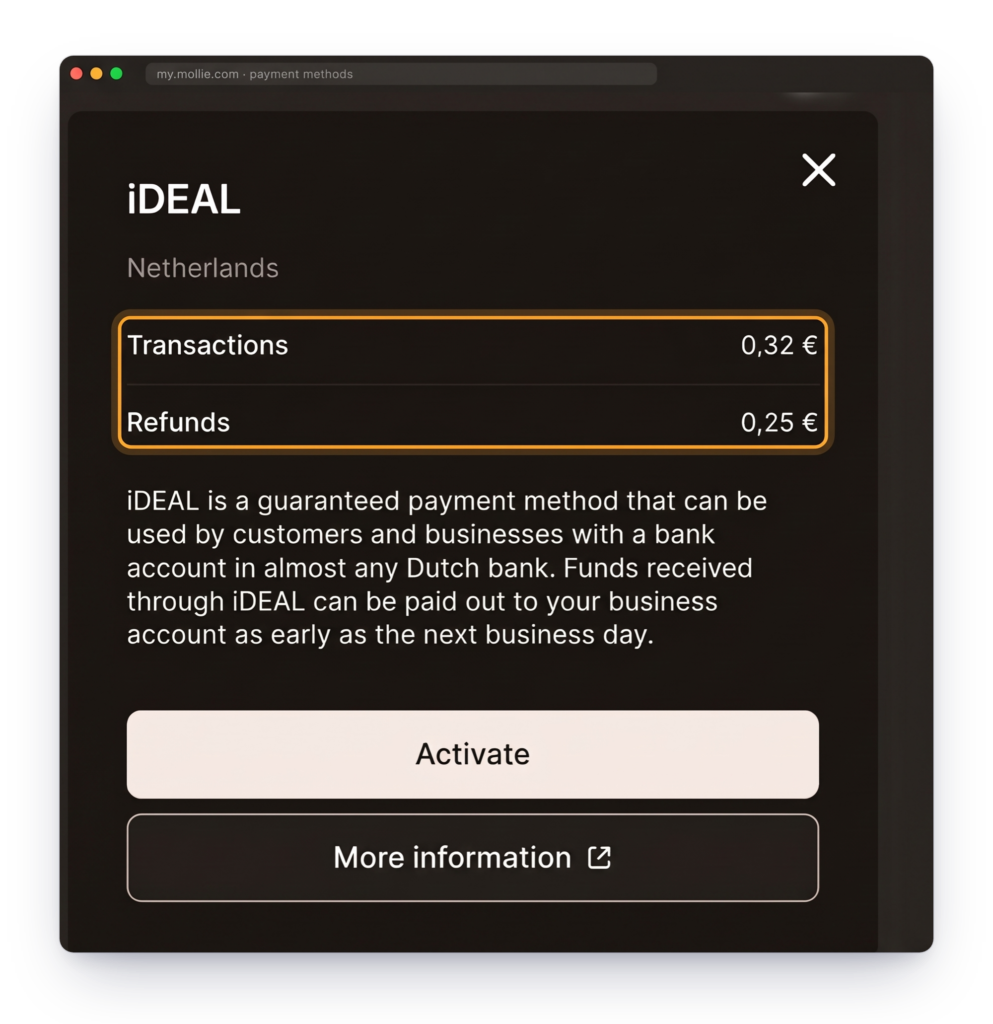
The payment goes to Mollie first. Mollie deducts its transaction fee (for iDEAL, around €0.32) and pays out the rest to your business bank account, according to the payout schedule set in your Mollie dashboard.
In eFaktura.nl, the invoice status changes to “paid” automatically after a successful payment. You can see straight away who has paid and who might need a reminder.
How to connect your Mollie account to eFaktura.nl
You only need to set up the integration once. The longest part is the account verification at Mollie, so before you start, have these ready:
- your KvK number and company details, exactly as registered
- your BTW (VAT) number
- an ID document: passport, ID card, residence permit or driving licence
- access to your business bank account, which you’ll confirm with a 1-cent verification transfer
- your website address or your company’s social media profile
- Log in to eFaktura.nl and go to the Mollie integration.
- Click the registration link. If you already have a Mollie account, just log in.
- Fill in the forms at Mollie and wait for verification. We describe each step below.
- Once your account is verified, it’s connected to eFaktura.nl and you can add payment links to your invoices.
Important: an eFaktura.nl account alone isn’t enough. Payment links only work once your Mollie account has been verified.
Mollie registration step by step
Mollie is a financial institution, so by law it has to check who runs the business and which account the money goes to. With your documents at hand, the forms take just a few minutes.
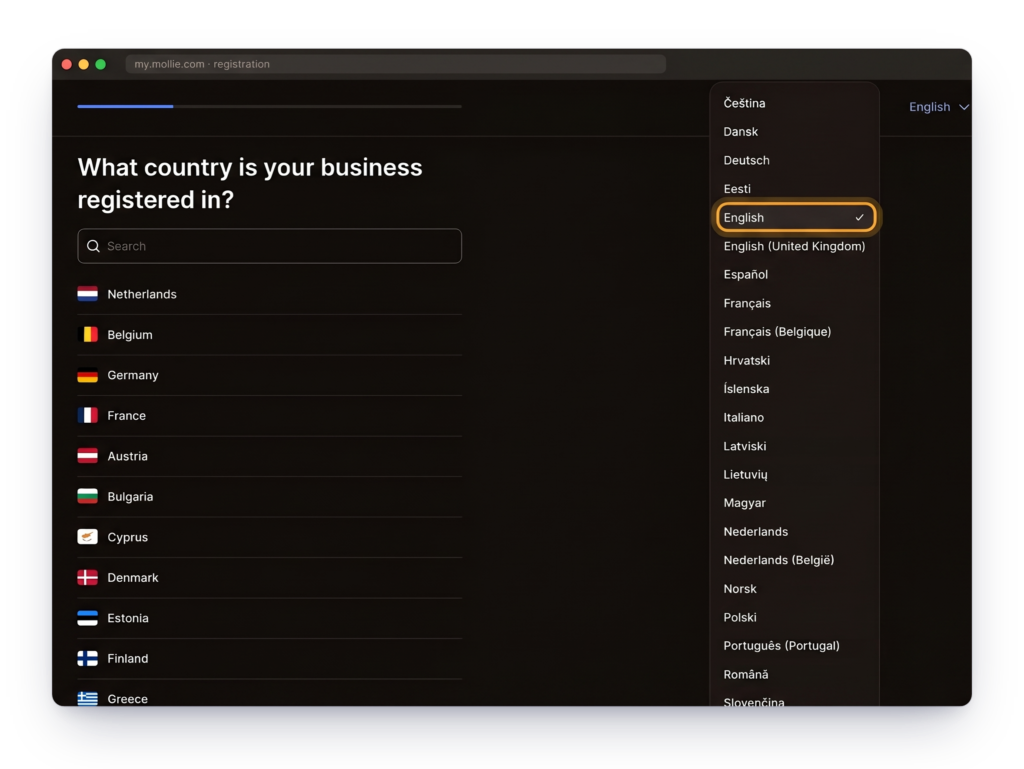
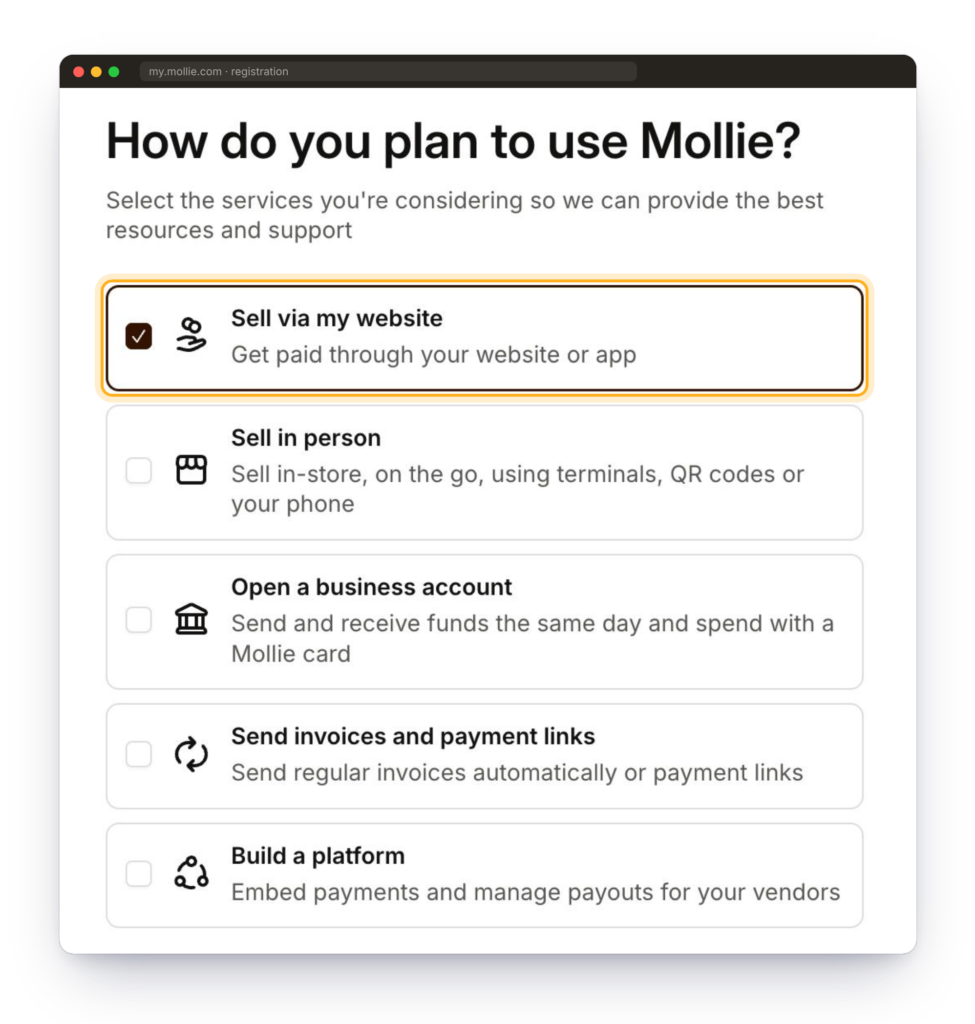
1. Create an account. Enter your name, email address and a password. After logging in, click the blue button to start setting up your account.
Important: Mollie will ask how you plan to use your account. Select Sell via my website (“Get paid through your website or app”). This option lets eFaktura.nl create payment links on your invoices. Don’t choose Send invoices and payment links: that’s Mollie’s own invoicing service, and changing this choice after setting up your account is a hassle.
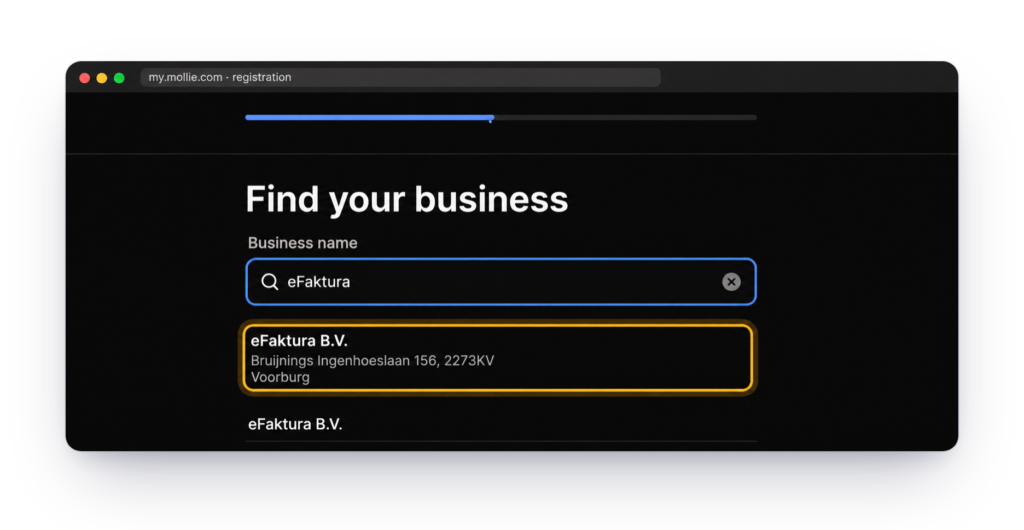
2. Company details. Enter the country, company name, legal form and address, exactly as listed in the business register. Add your expected turnover and BTW number, then accept the terms.
3. People in the company. Enter the details of the company’s legal representative and indicate whether they are the ultimate beneficial owner (UBO), meaning they hold more than 25% of the shares. If you run a sole proprietorship (eenmanszaak), you fill both roles.
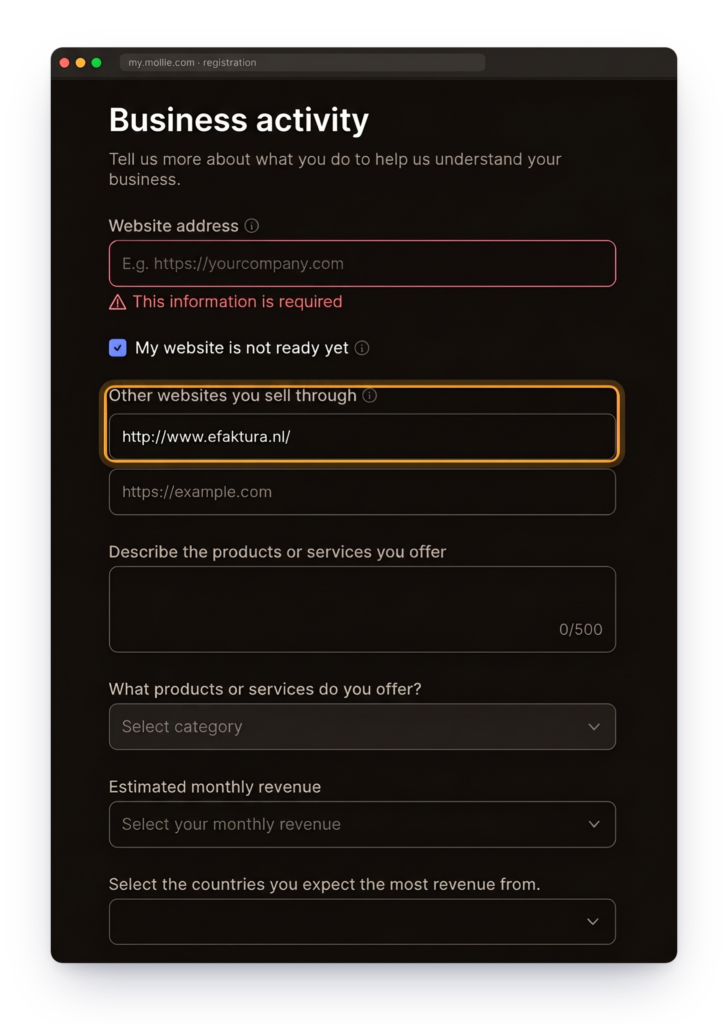
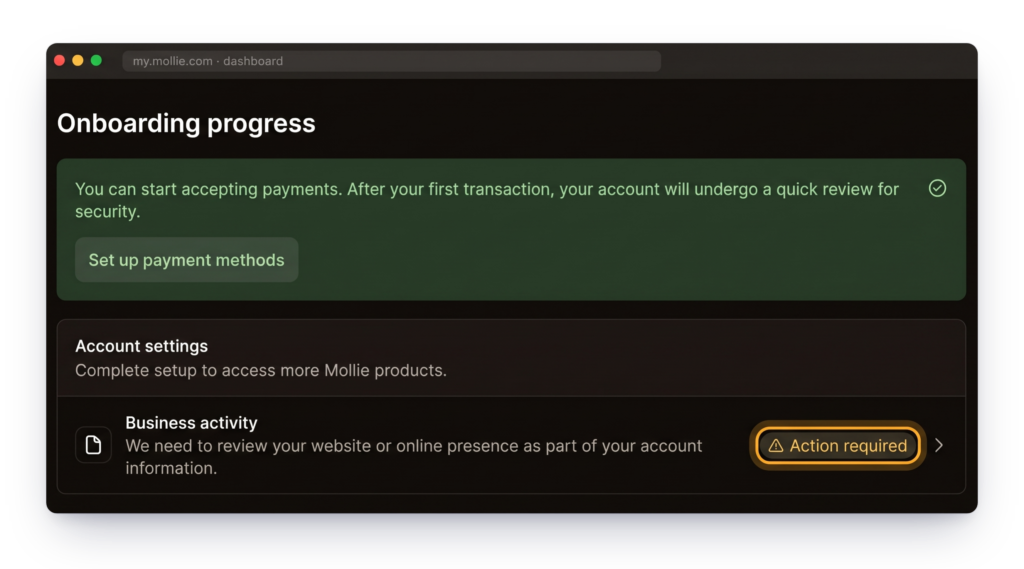
4. Website and business description. Enter your website address and briefly describe what you sell. If you don’t have a website, you can enter the address of your invoicing system or your company’s social media profile.
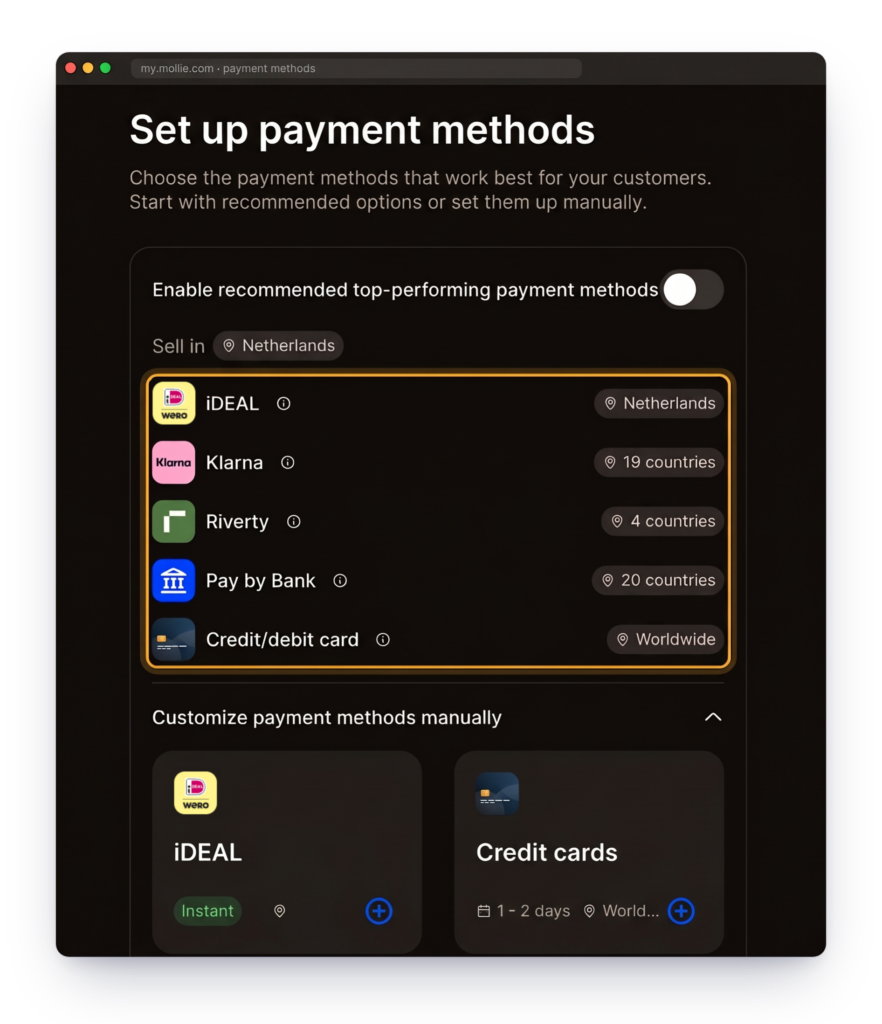
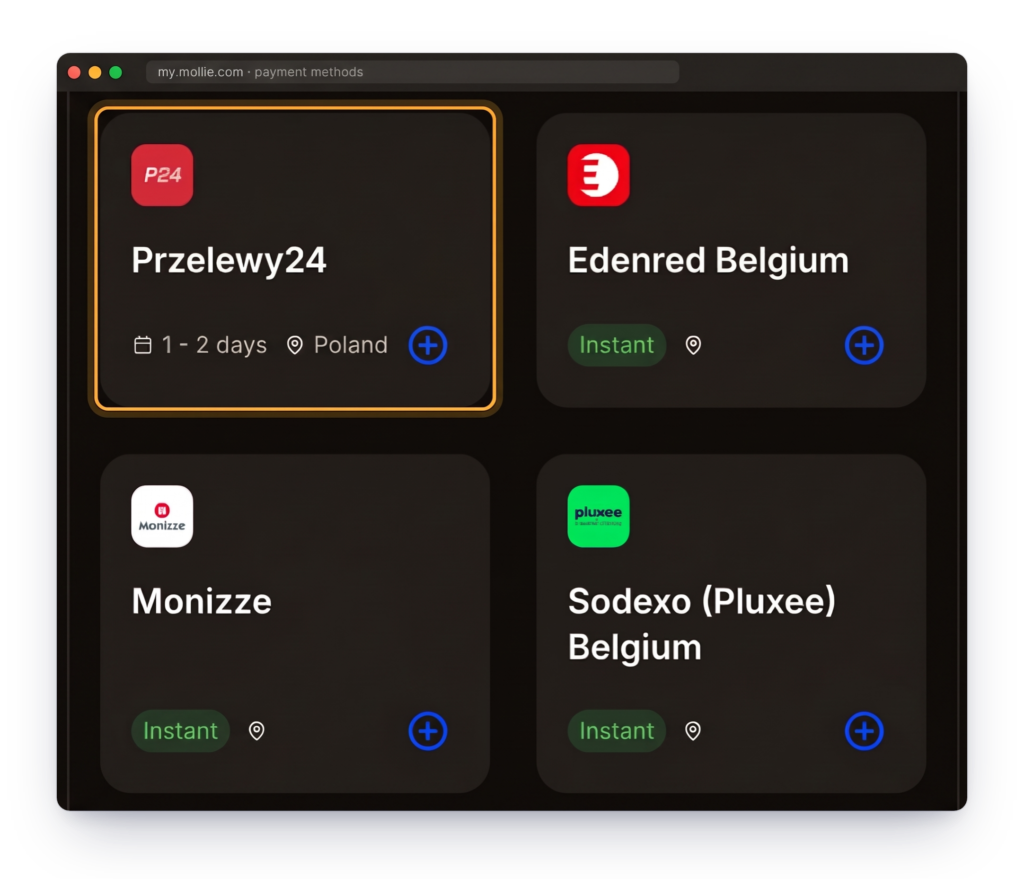
5. Payment methods. Mollie supports more than 40 payment methods, from iDEAL/Wero to cards, PayPal and local methods from other countries, such as BLIK. You decide which ones your client sees. Each method has its own fee, so check the rates in Mollie’s pricing before you switch it on.
6. ID document. Upload a scan or photo of an ID document for each legal representative. An unreadable copy is the most common reason for a rejected application.
7. Bank account. Enter the IBAN of the account Mollie should pay out to. It has to be a business account; only sole proprietorships can use a personal one. You confirm it with a 1-cent transfer from that same account.
Note: only make this transfer once your bank shows the correct account holder name. Otherwise Mollie won’t be able to match the payment.
8. Verification. Mollie checks your details and lets you know the result by email. This usually takes 2–3 business days, sometimes up to 10. If anything is missing, you’ll see what needs completing in your Mollie dashboard.
FAQ
What is the eFaktura.nl integration with Mollie?
The eFaktura.nl integration with Mollie lets you add an online payment link to your invoices. Your client clicks the link and pays, for example with iDEAL, Wero, Bancontact or a card, and the money goes to your account via Mollie. The feature is available in the PRO plan at no extra cost in eFaktura.nl.
How do I turn on online payments for invoices in eFaktura.nl?
In eFaktura.nl, go to the Mollie integration, create a Mollie account using the link provided and complete the verification. Once your account is verified, Mollie is connected to eFaktura.nl and you can add payment links to your invoices. You’ll find step-by-step instructions above.
Do I need a Mollie account to add a payment link to an invoice?
Yes. A payment link only works if you have your own Mollie account that has been verified and connected to eFaktura.nl. An eFaktura.nl account alone isn’t enough.
Are payments through Mollie secure?
Yes. Mollie B.V. is a Dutch electronic money institution licensed and supervised by De Nederlandsche Bank (DNB). Your client pays on Mollie’s payment page and confirms the transaction in their bank or app. eFaktura.nl never sees or stores your clients’ card details or bank logins.
Does eFaktura.nl have access to the money from online payments?
No. eFaktura.nl creates the payment link and connects it to the invoice, but it doesn’t receive or hold any money. Your client’s payment goes to Mollie, and Mollie pays it out to your business bank account.
Who handles refunds, complaints and chargebacks for Mollie payments?
Mollie handles the payments, and you sign your agreement directly with Mollie. You manage refunds, payouts and card payment disputes (chargebacks) in your Mollie dashboard. You remain responsible for the content of the invoice and its tax treatment, just as with a regular bank transfer.
How much does a payment link on an invoice cost in eFaktura.nl?
The Mollie integration, and with it the payment link, is part of the eFaktura.nl PRO plan. Mollie doesn’t charge a subscription or any fee for failed payments. You only pay for successful transactions, and the fee depends on the method your client chooses.
Mollie’s rates change from time to time, so always check the current amounts in Mollie’s pricing. Roughly, they look like this:
- iDEAL / Wero (client in the Netherlands): around €0.32 per transaction
- Bancontact (client in Belgium): around 1.40% + €0.25
- personal Visa or Mastercard from the EU: around 1.80% + €0.25
- business card from the EU: around 2.90% + €0.25
For example, an invoice of €500 paid with iDEAL costs you around €0.32. The same invoice paid with Bancontact costs around €7.25, with a personal EU card around €9.25, and with a business card around €14.75. Mollie deducts the fee from your payout, so the amount that reaches your account is reduced by the transaction cost.
Which methods can my client use to pay an invoice through Mollie?
Your client can pay with the methods you switch on in your Mollie dashboard. Mollie supports, among others, iDEAL and Wero (Netherlands), Bancontact (Belgium), Visa, Mastercard and American Express, Apple Pay, Google Pay and PayPal. In the Netherlands, iDEAL is gradually being replaced by Wero.
Can clients abroad pay an invoice through a Mollie link?
Yes. Clients in other countries can pay with a method available to them, most often a card, PayPal or a local method, such as BLIK or Przelewy24 in Poland. The options depend on the methods you’ve switched on in your Mollie dashboard.
When will the money from Mollie reach my account?
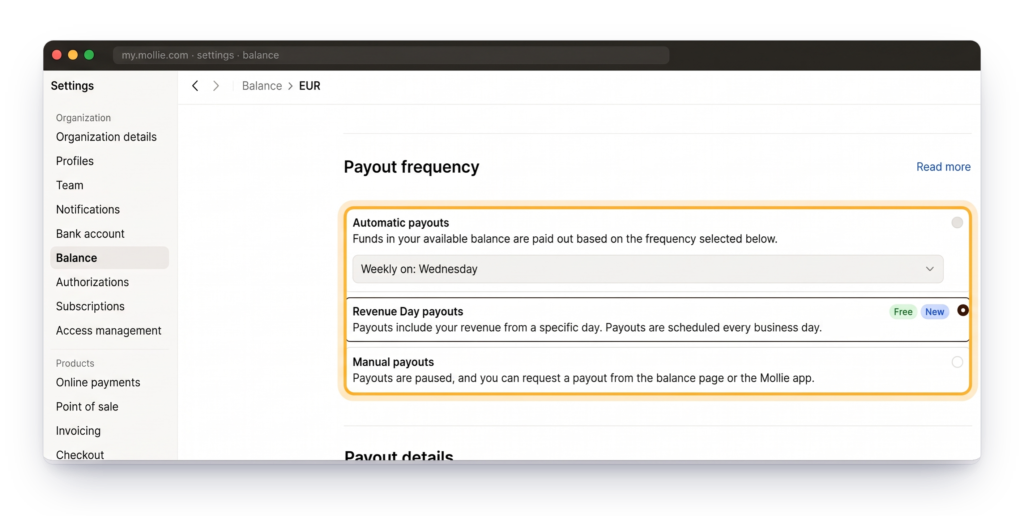
Mollie pays out according to the schedule you set in your Mollie dashboard: every business day, once a week or once a month. Payouts are reduced by transaction fees, and Mollie sends you a monthly invoice for those fees. It’s worth passing it on to your accountant along with your other costs.
Do I have to add a payment link to every invoice?
No. You decide which invoices in eFaktura.nl get an online payment link.
Can my client still pay by regular bank transfer?
Yes. The online payment link is an extra option. A client who prefers a traditional transfer can still pay to the account number on the invoice.
Where can I get help with the eFaktura.nl integration with Mollie?
For questions about how the integration works in eFaktura.nl, contact the eFaktura.nl support team. For account verification, payouts, refunds and fees, contact Mollie’s customer service, which manages your payment account.
Create the invoice. Add the link. Get paid.
A payment link shortens the path from receiving an invoice to paying it. Your client doesn’t need to log in to their bank or copy any transfer details, so it’s easier for them to pay as soon as they open the document. And you get a clearer view of which invoices have already been paid.